
Since launching some new enhancements such as Bill Notification Service, we have had many requests regarding the ability to see what customers are signed up for which feature. We are in the business of providing ease of service, so with that in mind, we have made a number of changes to the functionality of our Customer Reports.
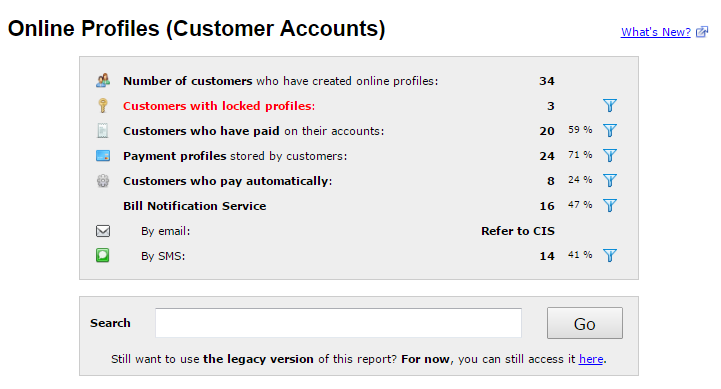
The biggest update is the ability to filter customers by feature. We have added the  icon, which will allow you to pull all customers per each feature. For instance, if you want to see the 8 customers signed up for Automatic Payments from the example above, just click on the filter icon and the results will be provided and labeled as such:
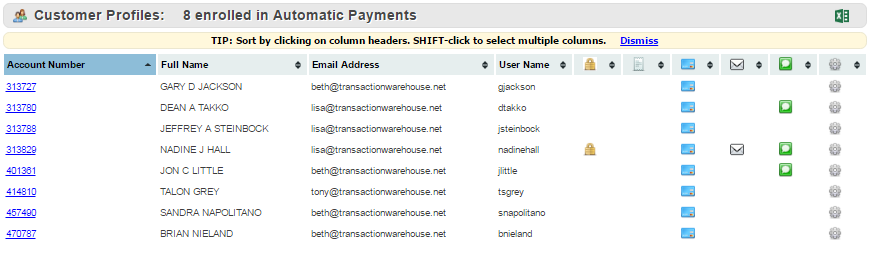
You also now have the ability to export your results to Excel! Just look for the  icon with your search results and the report will either download or open in a new tab, depending on your browser.
*************************************************************************************************************************************************************************
We have also updated the search criteria, thereby providing more accurate results.
NUMERIC SEARCHES
A numeric search can be executed using one or more digits. This type of search will only be used to search the account number field and will have a wildcard applied to the end of your search term. For example, entering "0" (zero, without the quotes) will only bring back records with account numbers beginning with zero, "313" would bring back "313646" and "313245", but NOT "553133".
A typical use case for this is when you know the user's account number, or at least the first part of an account number. This is the most efficient way to search for a specific record.
ALPHA-NUMERIC SEARCHES
If the search term contains anything other than numbers (as in letters, symbols, etc.), two or more characters are required. This kind of search will have a wildcard applied before and after your search term and will search on the Full Name, Email Address, and Username fields only. For example, a search for "el" would find full names of "Eleanor Rigby" and "Robert Ellison", the email address "eltoro@fakemail.com", and the username "mackerelboy22".
EXACT MATCH BONUS
If your search finds only a single record and the term you entered exactly matches any one of the fields (account number, full name, email address, or username), you will be taken directly to the details of that record. For example, if you have a single record in your database with a full name of "John Doe", you could search for either "John" or "Doe", but each one is only a partial match. To go directly to the record, you would need to search for the whole full name, "John Doe". You are more likely to go directly to the record you are looking for if you enter a search term that is more likely to be fully unique among your records. The username, by definition, will always be unique. Account numbers will most liekly be unique, as will email addresses. Seraching for "gamil" will bring back too many results to be very useful. However, searching for "specific@gamil.com" will liekly find the only user with that email address.
SORTING YOUR RESULTS
You can change the sort order of your results by clicking on the headers at the top of the results table. For example, click the Username column header to sort by username, A to Z. If you click the same header again, it will reverse sort by username from Z to A. You can even sort by multiple columns by holding down the SHIFT key when you click a column header.
Comments
0 comments
Article is closed for comments.